From first sign-in to the final
Run your tournament, step by step.
Practical instructions for organizers. Choose a task and follow the steps; button labels depend on the language selected in the app.
Try a practice tournament, test the printer and scan your QR before tournament day.
Screenshots show the actual interface in English with fictional demonstration data. Select an image to open it at full size.
01First sign-in
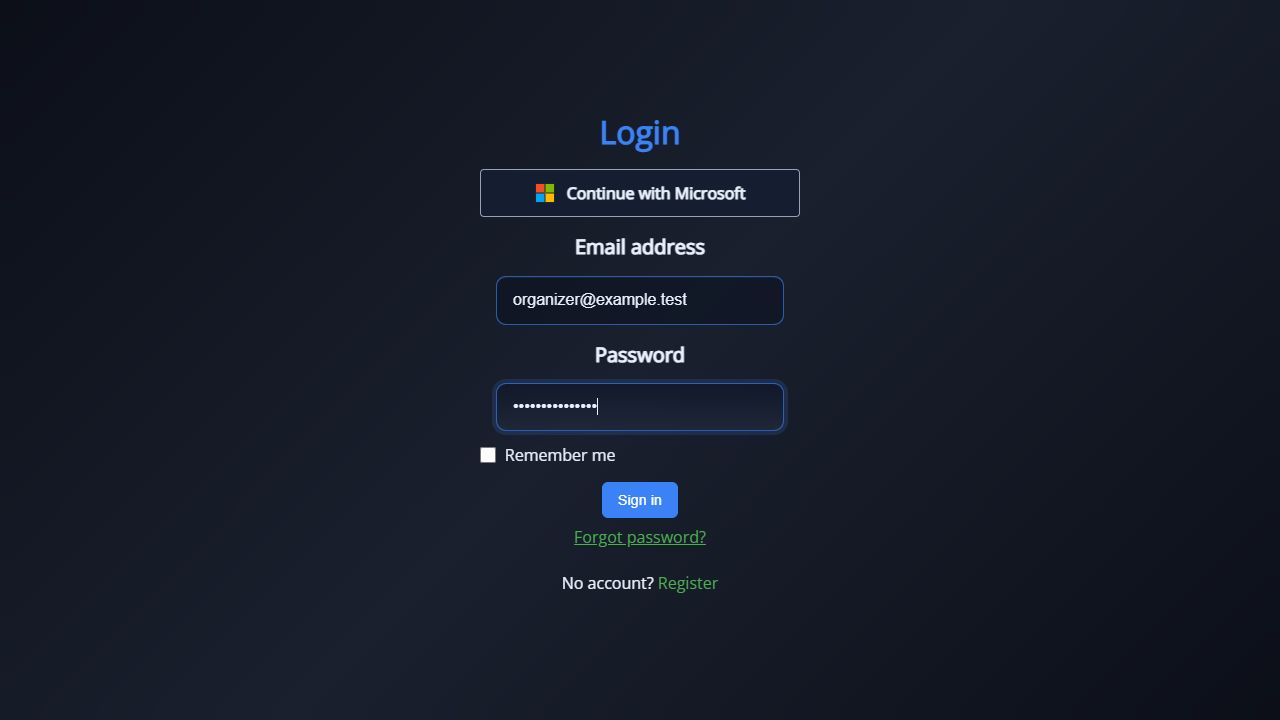
- Install TourneyDesk and create an account in the app with your email and password. Complete the required fields and confirm your email using the link in the message.
- Sign in to the app. New accounts automatically receive 30 days of full access free; no access application is needed to start. If Microsoft sign-in is enabled, complete it in your external browser and return to TourneyDesk.
- For offline use, first sign in online with Remember me enabled. Check your offline access validity in Settings; web publication still requires internet.
02Full access after the free 30 days
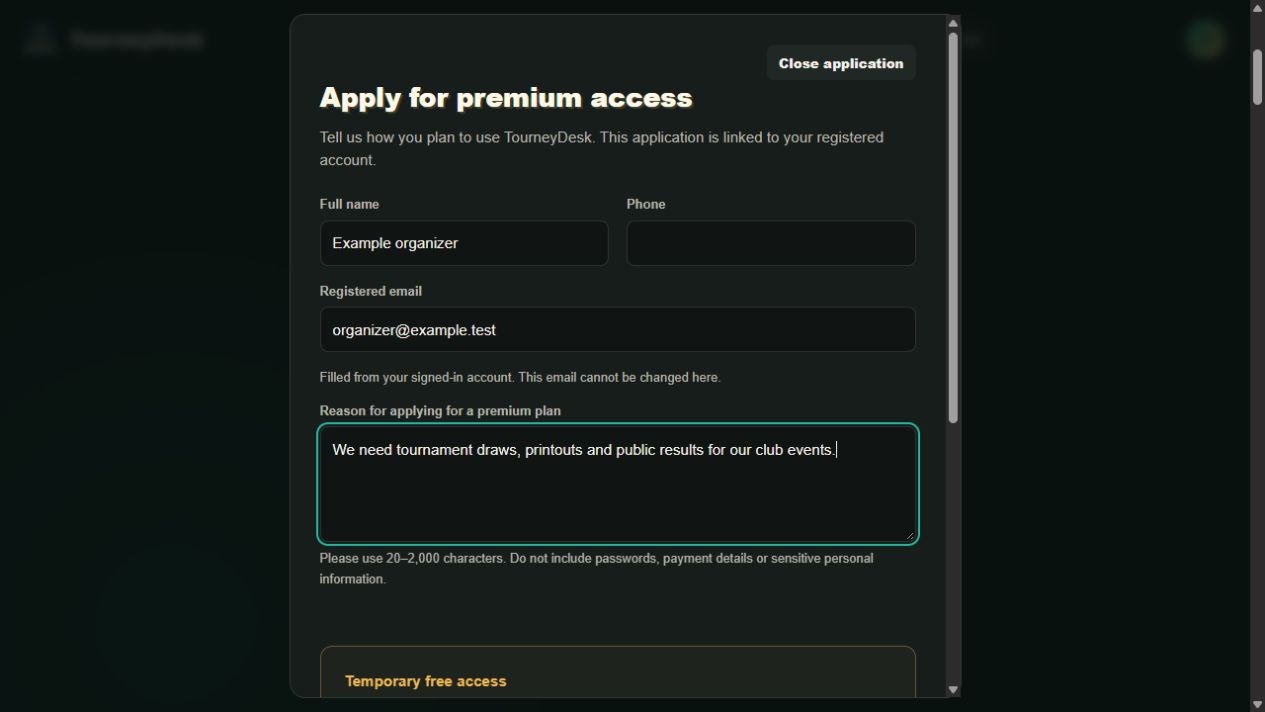
- New accounts get 30 days of full access free without applying. To continue with full access afterward, choose Request full access on the homepage and sign in with the same account as in the app. Your registered email is filled automatically.
- Enter your name, phone and reason for continued use. Include your club or federation and planned tournaments, read the access notice and submit your request.
- Wait for management’s decision by email. Sending a request does not extend the trial or automatically grant continued access. Continued full access is currently free for approved users. If submission fails, retry or contact [email protected].
03Create a tournament and register participants
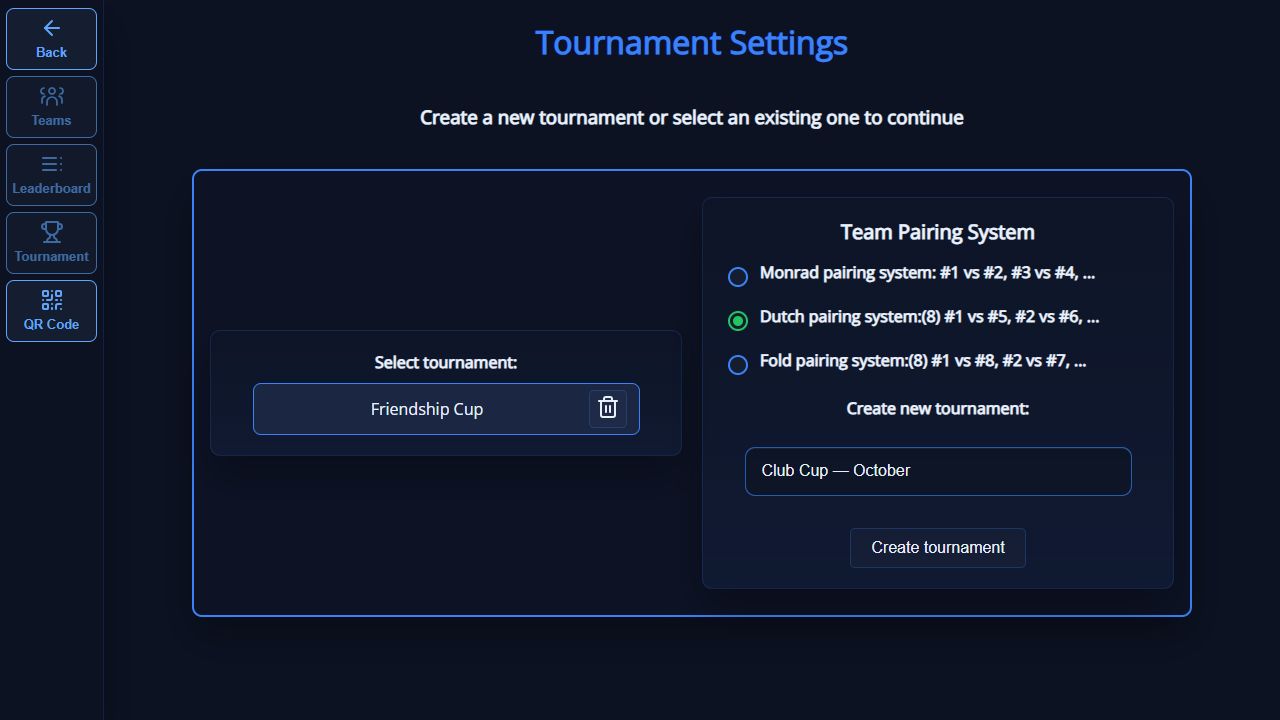
- Choose Swiss, Solo, Round Robin, Playoffs or Precision Shooting. For Swiss, choose the pairing system too. Enter a name and select Create tournament.
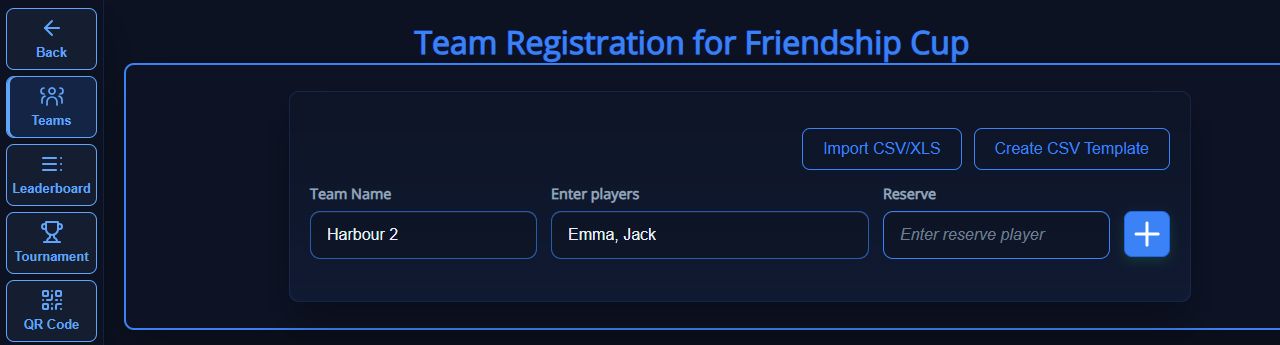
- Open the tournament. Add teams or players, or import them using the template provided by the app. Check names, duplicates and participant counts before the first round.
- For Round Robin, prepare groups and team assignments first. For Precision Shooting, configure qualifications and advancement. The round instructions below mainly cover Swiss and Solo.
04Round and court settings
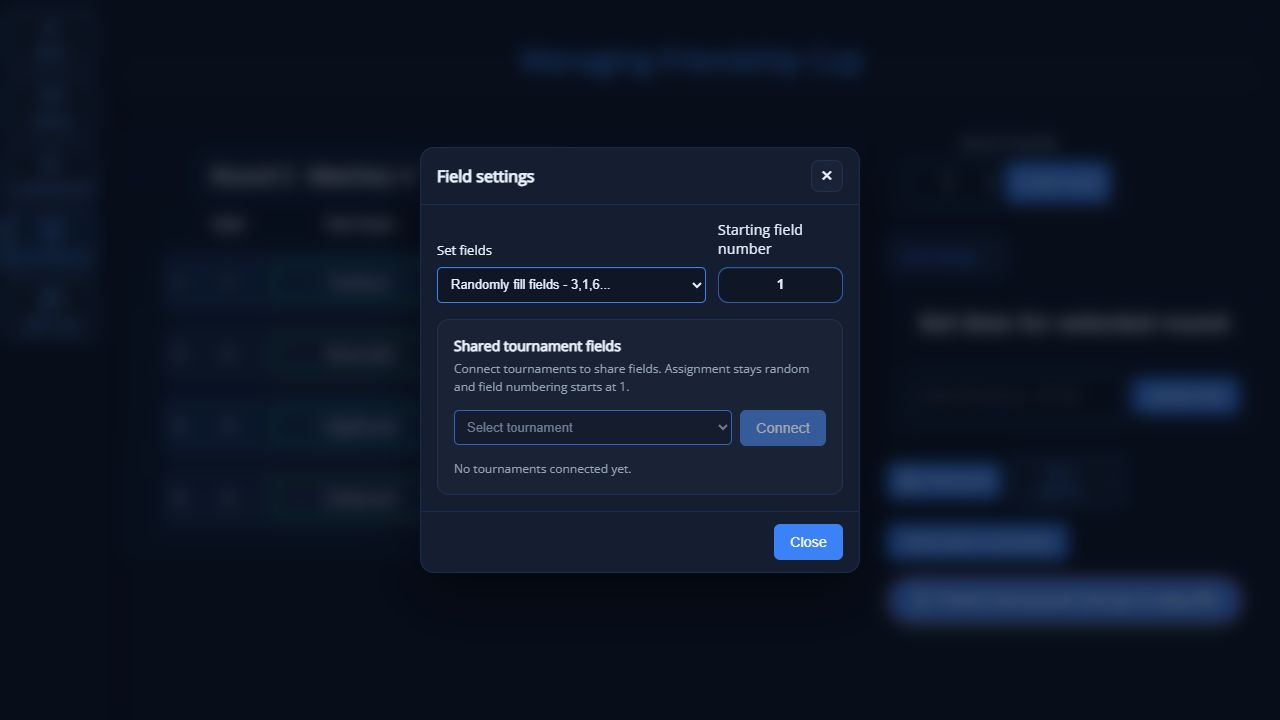
- Before creating a round, open Court settings. Choose sequential or random allocation, or no court numbers, and set the starting court number.
- If tournaments share courts, connect them in Court settings before allocation. Check the connected tournaments to avoid overlapping assignments.
- In Swiss and Solo, manual court editing of an existing round requires a disconnected round without results. Use unique positive numbers. Set the timer; in Solo also check team size and team formation.
05Create a round and enter scores
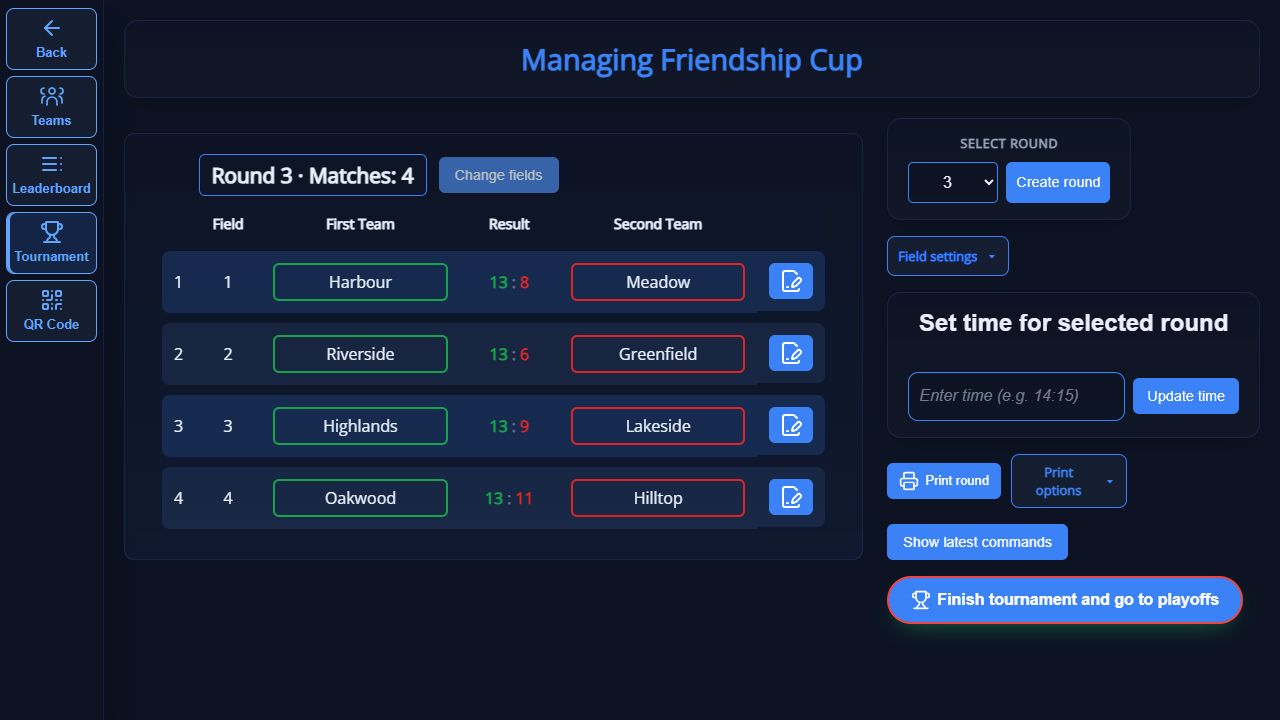
- Check the selected tournament, participants and settings. Select Create round and wait for the pairings.
- Review pairings and courts, then publish or print the schedule. Enter the scores after matches and check that they are saved.
- Complete all results in the previous round and check the standings before creating another round. Make corrections before continuing because they affect rankings and later pairings.
06Print round sheets
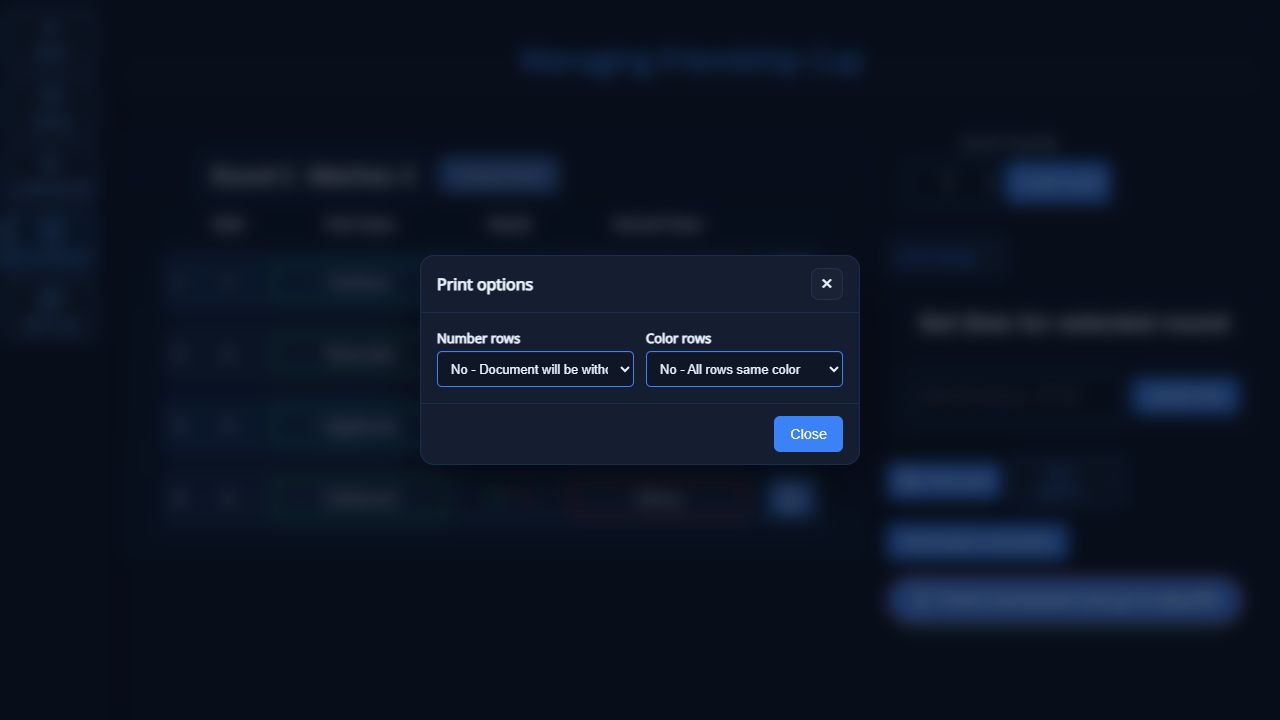
- Select the round to print. Check row numbering and alternating colours in Print settings.
- Choose Print round. The app generates an Excel file; use the offered action to open it or show its folder.
- In Excel or a compatible spreadsheet app, check the preview, paper, scaling and printer, then print. TourneyDesk generates the file; physical printing happens in the spreadsheet app.
07Print standings and find your files
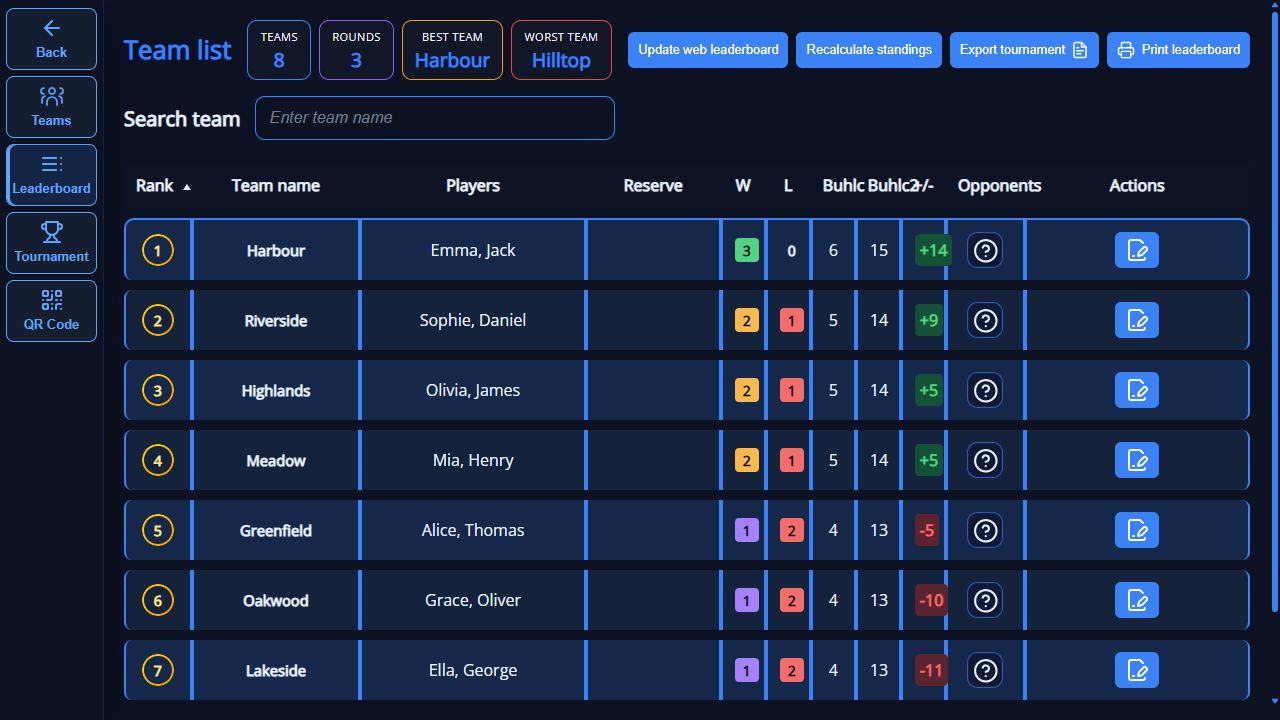
- Open the selected tournament’s standings and check that all scores are entered. Choose Print standings.
- Open the generated Excel file, check ranking and print preview, then print. Editing Excel does not change TourneyDesk tournament data.
- Direct installations save printouts in a tournament folder beside the app. The Microsoft Store edition uses Documents/TourneyDesk/Output. Tournament data stays separately in Documents/Petanque_Data/Data. Use the app’s folder action to find generated files.
08Club, federation and publication folder
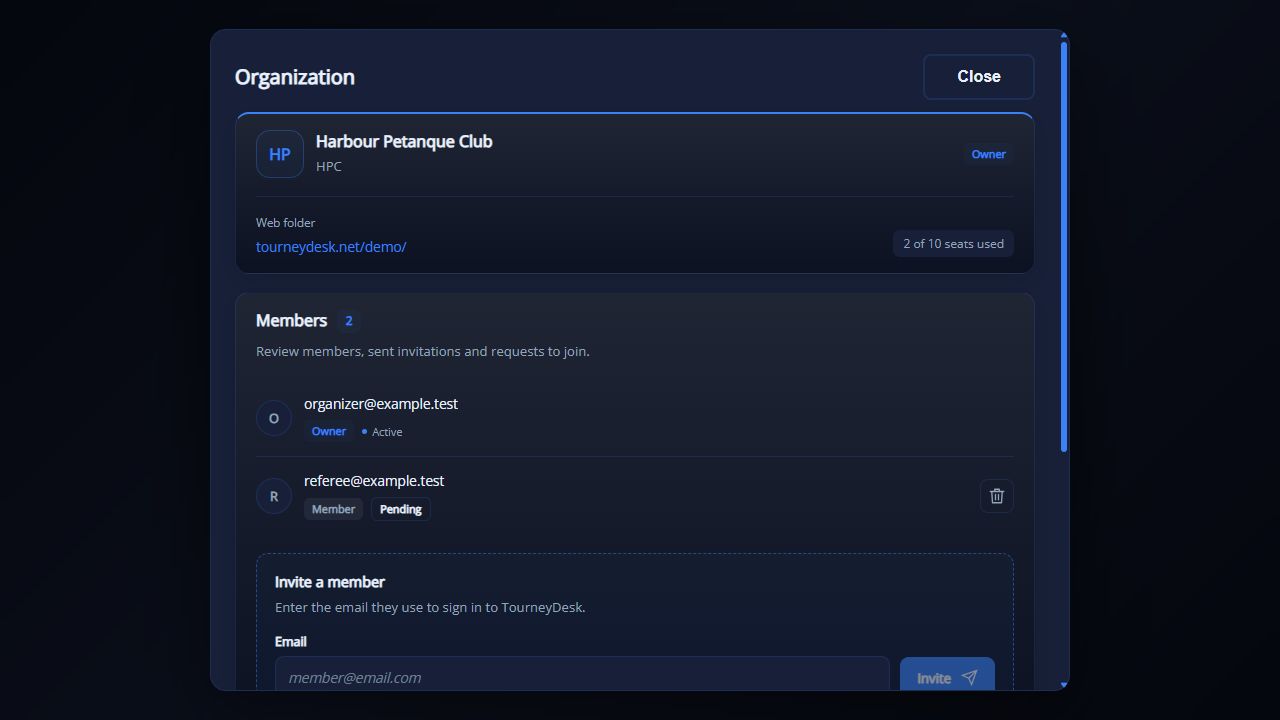
- Open Organization in Settings. If your club or federation already exists, choose Join organization and submit a request; the owner must approve it.
- Otherwise choose Create your organization, enter its name and short name, and check the web folder. Organization members publish to the same shared folder.
- The owner manages members and the result-entry code here. Share the code only with people managing the playoffs. Organization membership requests are separate from applications for app access.
09Publish and print a QR code
- Check internet connectivity and active membership in the correct organization. Select QR code in the tournament; when online, the app first updates the public page. Resolve any publication error before sharing the link.
- Use the QR generation action. Open the generated PNG and print it from an image viewer or include it in a player notice.
- Scan the code with a phone before putting up the poster. Check the tournament, organization and scores. A failed upload preserves a successful local save, but the public page may be outdated; reconnect and publish again.
10View the tournament online
- Players scan the QR code or open your shared link. Public viewing requires neither an account nor the result-editing code.
- Check the selected tournament on the public page. View published rounds, results, standings and playoffs; use the tournament selector to switch events.
- After changes, check that publication succeeded and refresh the public page. For access outside the venue, share the public web link, rather than a local computer address.
11Finish the main stage and create playoffs
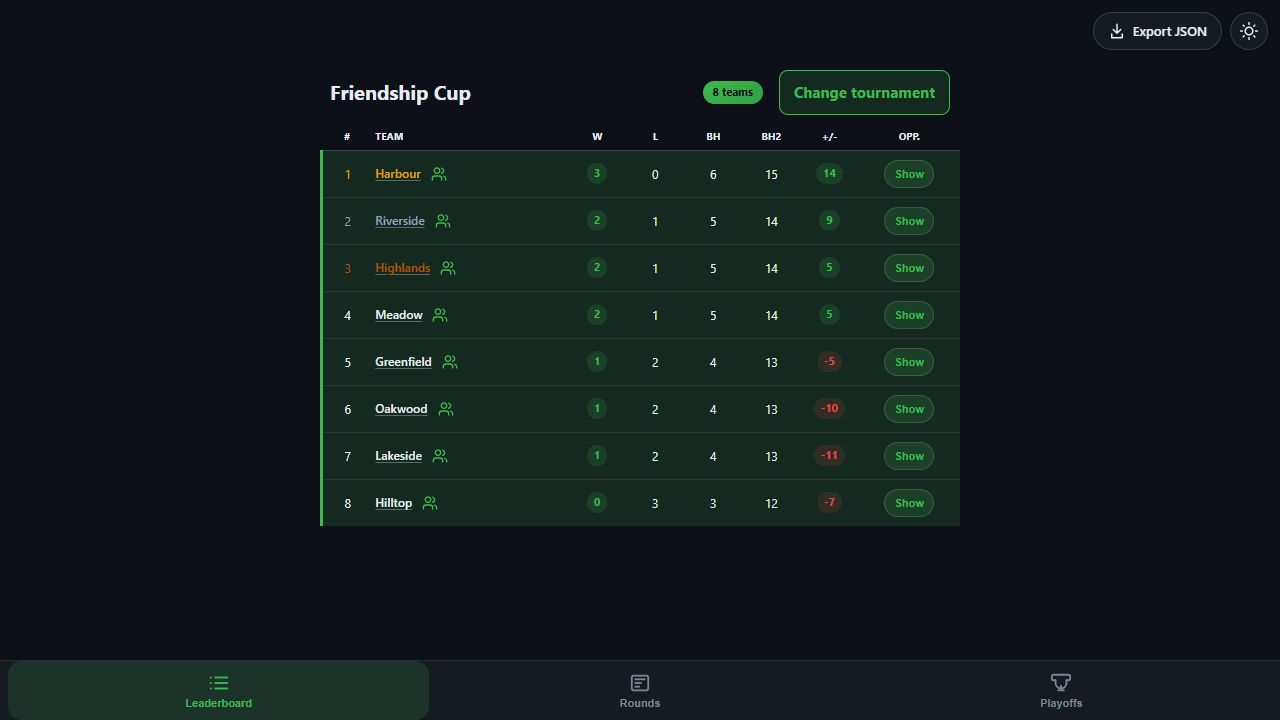
- Complete and check all main-stage scores. Review final standings and create a backup before continuing.
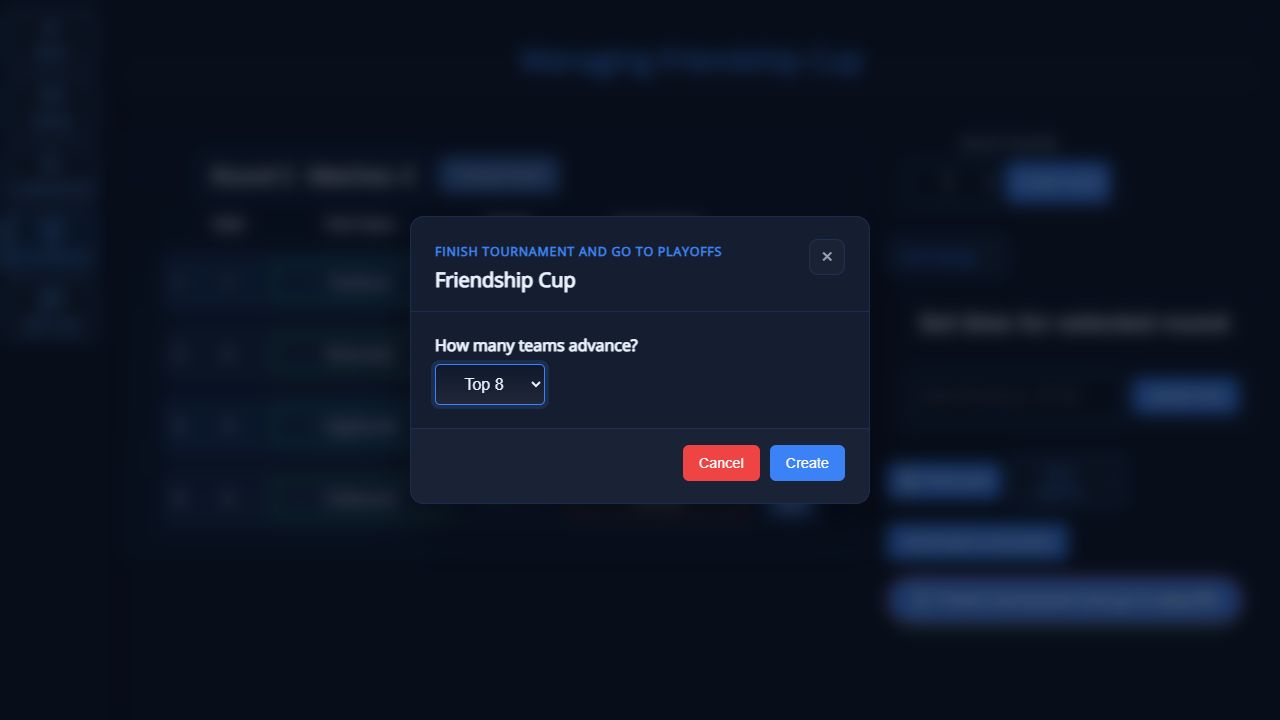
- For a tournament that supports advancement, choose Finish tournament and go to playoffs. Select the number of advancing teams and confirm with Create.
- Open the playoffs, check participants and pairings, and publish. Check main-stage results before this step. Changing a playoff winner later can recreate downstream matches.
12Manage playoffs from a phone
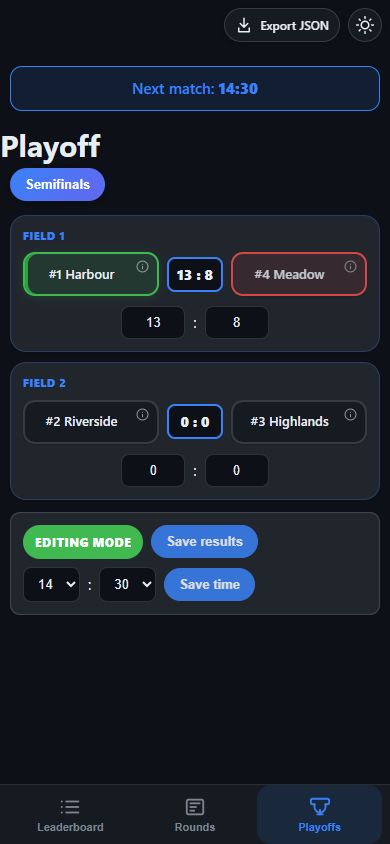
- The organization owner finds the result-entry code in the app’s Organization settings. Open the published tournament and its playoff view on your phone.
- Choose Edit results, enter the code and enable editing. Check the two teams, enter the score and save. Wait for confirmation and check the updated page before moving to the next match.
- This requires internet. Give the code only to tournament officials; do not display it beside the public QR. Agree who enters results; do not assume phone entries are already in the local app. Check public results before publishing again from the computer.
13A website for your club and statistics integration
Run your tournament in TourneyDesk while players follow schedules, results, standings and playoffs on a public web page. Supported Swiss tournaments, including linked playoffs, can be exported as JSON for import into a compatible statistics website.
ZDPS-statistika is an example of this approach for the Slovenian petanque federation, ZDPS. Explore the website to see how tournament results and statistics can be presented to your community. TourneyDesk does not require ZDPS membership or use of that website.
Would you like a similar solution for your club or federation? We offer website design and development, with TourneyDesk tournament links and statistics integration agreed for your needs. Tell us what you have in mind and we will propose the website, features and implementation.
Back to contents